 The setting
Give the artist room in a studio, street, or stage.
 Rapframe AI Rap Video Maker
SHORT SCENES FOR A WIDER FRAME
Create short 16:9 rap video scenes for a YouTube teaser or a longer edit.
5–10 seconds · 15 on Pro & Max · MP4
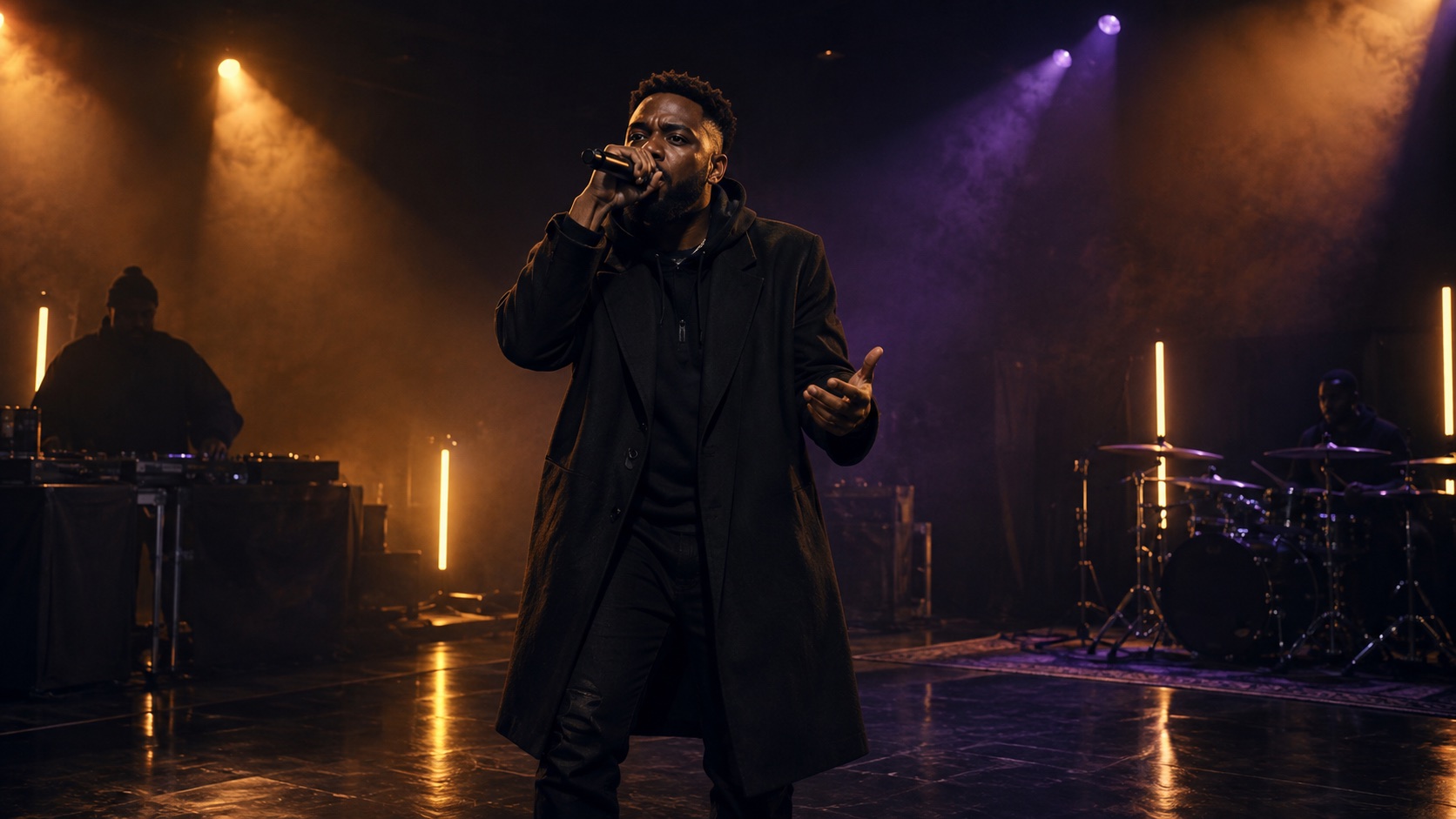
Generate one short scene at a time. Combine your clips in a video editor for a longer MV.
The settingGive the artist room in a studio, street, or stage.
 The camera
Choose one smooth move for each short scene.
 The edit
Keep the look consistent as you combine clips.
 Add your idea
Describe a scene, or add your song and a photo.
 Choose 16:9
Select horizontal and your clip length.
 Create a scene
Generate and review one scene at a time.
Download and editUse the MP4 as a teaser or in a longer video.
Add your song and a portrait. Try this with 16:9 and 10 seconds.
Example prompt10-second horizontal 16:9 rap performance on a dark stage. Begin close to the artist, then track backward to reveal the lights. Amber and violet lighting, black coat, one smooth camera move, confident performance.
Choose horizontal 16:9 for a widescreen YouTube video. For YouTube Shorts, choose vertical 9:16 instead.
Each generation creates a short clip: 5 or 10 seconds on Free and Basic, with 15 seconds also available on Pro and Max. To make a full-length music video, generate separate scenes and assemble them in a video editor.
Yes. Add your song with a reference photo, then describe the scene you want. You can also start from a text idea. Use music and images you own or have permission to use.
Download the generated MP4 and upload it to YouTube yourself. If it is part of a longer video, finish the edit before uploading.

