 Rapframe
Villain Chair Trend AI – Make the Chair Turn from a Photo
Put yourself or your pet in the Villain Chair Trend. Pick a version and upload one clear photo to recreate the slow reveal and awkward chair tilt.
Create my video
Upload your photos to use this template.
Pick an effect
All 235 effects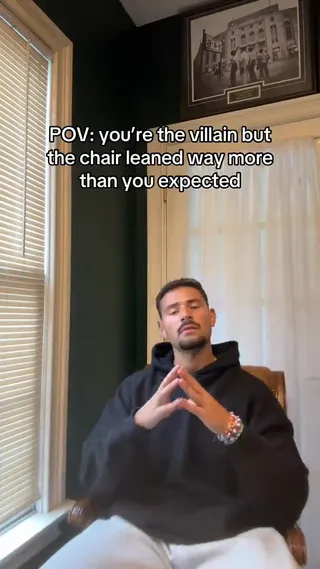
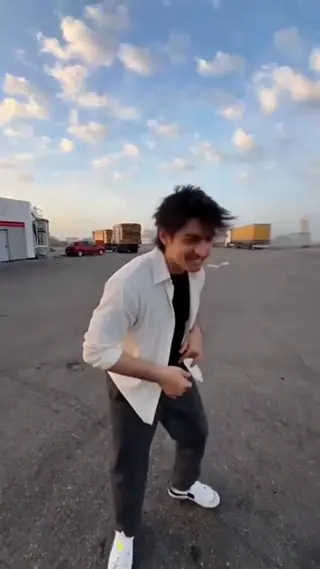
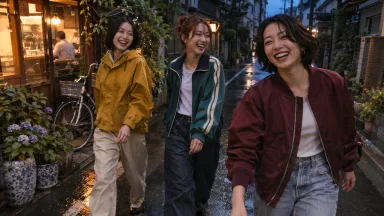
Enable JavaScript in your browser to upload material and generate a video.
Paid credits required. Check the cost before generating.
Preview unavailable. Try again.
What happens in the reference clip?
The portrait version opens sideways in a reclined chair, then the person rocks forward and joins their fingertips. In the pet version, a gaming chair swivels into view and tips back after the pet brings its paws together.
Does the video include sound?
Sound is on by default. The model uses the audio in your chosen reference to guide the clip’s sound and timing.
Which photos should I add?
Use a portrait with the face and upper body visible. For a pet, choose one sharp photo where you can see the face, ears and front paws.
Create my video
Add your photos
Put yourself or your pet in the Villain Chair Trend. Pick a version and upload one clear photo to recreate the slow reveal and awkward chair tilt.
Personalize the scene
Yes. Add a short instruction about clothing, lighting or the setting. Keep the assigned photo roles for the selected scene.
Generate and download
Watch the reveal and chair tilt, then download your clip.
Questions about this video
Which version should I choose?
Use the portrait version for a person or the pet version for one animal. The portrait scene runs about six seconds, and the pet scene about nine.
Do I need to upload a reference video?
No. The scene and movement are already included. Upload the required photos and add optional instructions.
Does the video include sound?
Sound is on by default. The model uses the audio in your chosen reference to guide the clip’s sound and timing.
How long is the video?
≈ 6–9 s · 9:16
Can I change the outfit or background?
Yes. Add a short instruction about clothing, lighting or the setting. Keep the assigned photo roles for the selected scene.