 Rapframe
58th Floor AI — Teal studio rap duet
Put yourself and a friend at the same hanging microphone. The opening left performer finishes the hook, then the right performer takes the verse and the close-up. Two separate photos define two recognizable roles.
Create my video
Upload your photos to use this template.
Pick an effect
All 235 effects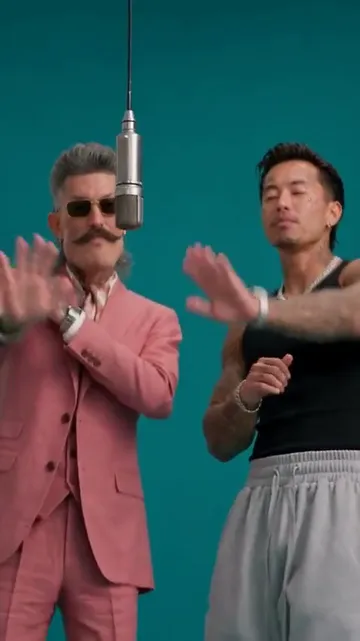
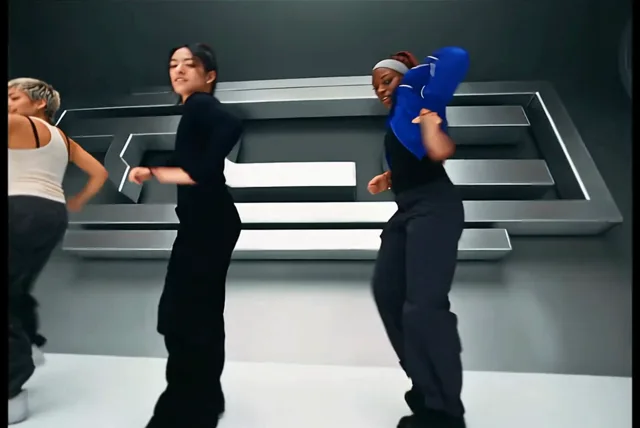
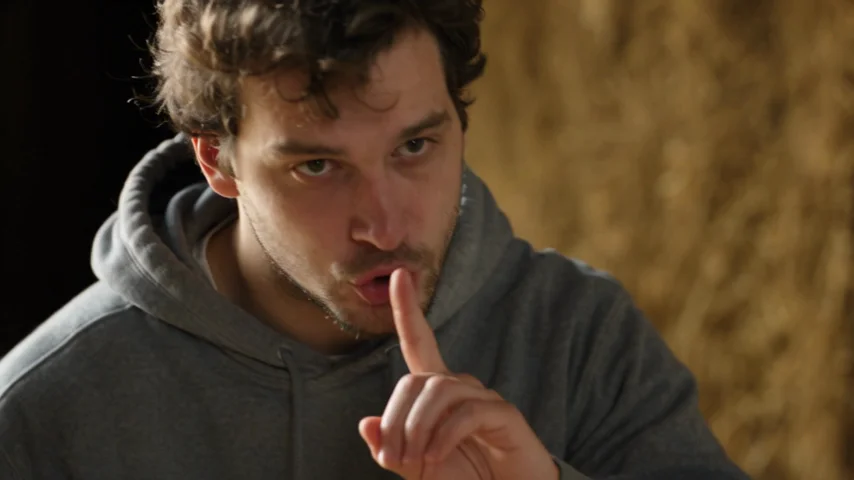
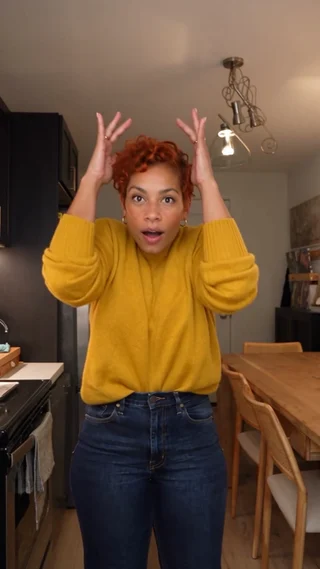
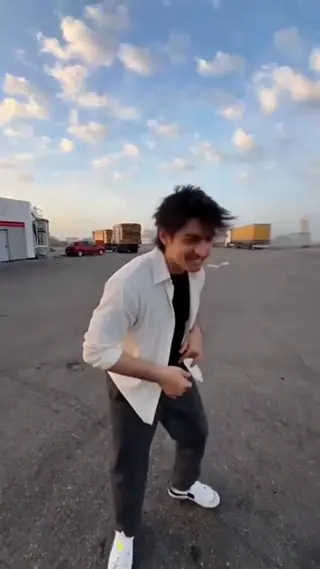
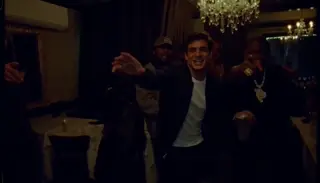
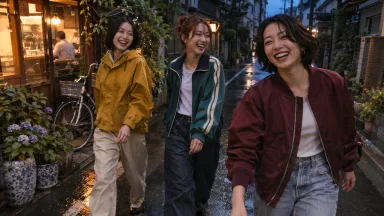
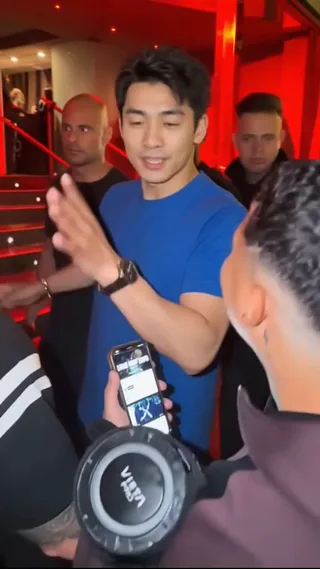

Enable JavaScript in your browser to upload material and generate a video.
Paid credits required. Check the cost before generating.
Preview unavailable. Try again.
What is 58th Floor AI?
58th Floor AI turns the teal-studio rap handover into a two-photo video. The scene is recognized by its bare turquoise room, silver suspended microphone and contrast between the performer delivering a line and the partner listening. A medium two-shot leads into the right performer’s close-up, a full-body platform view and a closer exchange between both roles. The photos define your cast rather than borrowing the source performers’ faces, hairstyles or costumes.
Your photos and the scene
The prepared motion clip guides the handover, physical gestures, camera drift and cuts. Photo 1 stays the opening left hook performer; photo 2 stays the right verse performer even when only that face fills the frame. Keep both uploads distinct. The teal studio is the default; an optional instruction can change lighting, clothing or setting while preserving these roles. No video upload or prompt writing is required.
Choose clear photos
Upload two separate, sharp photos with one subject in each. Show the face, hair and outfit clearly, ideally from the knees up or full body. Avoid group pictures, hidden faces and tightly cropped arms. Put the person who should get the verse and close-up second. Different outfits help the two identities stay readable in wide shots.
Create my video
Add your photos
Upload two separate, sharp photos with one subject in each. Show the face, hair and outfit clearly, ideally from the knees up or full body. Avoid group pictures, hidden faces and tightly cropped arms. Put the person who should get the verse and close-up second. Different outfits help the two identities stay readable in wide shots.
Personalize the scene
The prepared motion clip guides the handover, physical gestures, camera drift and cuts. Photo 1 stays the opening left hook performer; photo 2 stays the right verse performer even when only that face fills the frame. Keep both uploads distinct. The teal studio is the default; an optional instruction can change lighting, clothing or setting while preserving these roles. No video upload or prompt writing is required.
Generate and download
Review the displayed cost, then generate. Check faces, hands, motion and sound before downloading. New generations and revisions use paid credits.
Questions about this video
How many photos do I need?
Upload two separate, sharp photos with one subject in each. Show the face, hair and outfit clearly, ideally from the knees up or full body. Avoid group pictures, hidden faces and tightly cropped arms. Put the person who should get the verse and close-up second. Different outfits help the two identities stay readable in wide shots.
Do I need to upload a reference video?
The prepared motion clip guides the handover, physical gestures, camera drift and cuts. Photo 1 stays the opening left hook performer; photo 2 stays the right verse performer even when only that face fills the frame. Keep both uploads distinct. The teal studio is the default; an optional instruction can change lighting, clothing or setting while preserving these roles. No video upload or prompt writing is required.
Does the video include sound?
The matching soundtrack is added when sound is enabled. Request a silent video to leave it out.
How long is the video?
14 seconds, vertical 9:16 MP4. Sound is optional; exact lip sync is not guaranteed.
Can I change the outfit or background?
Yes. Add a short instruction about clothing, lighting or the setting. Keep the assigned photo roles for the selected scene.