 Rapframe
Look Alive AI — Two-photo rap and Shoot Dance
Look Alive AI: Two-photo rap and Shoot Dance. Use 2 separate photos, one subject per image. A 15-second 9:16 video; matching source sound is optional.
Create my video
Upload your photos to use this template.
Pick an effect
All 235 effects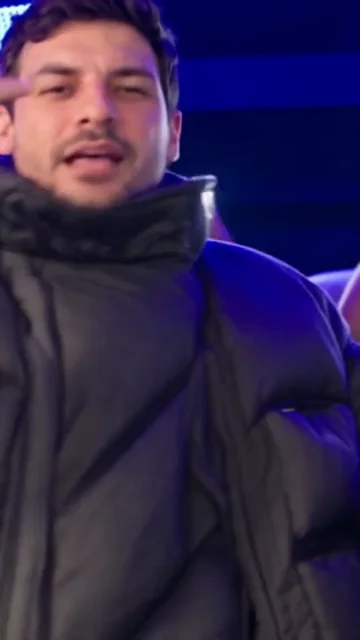
Enable JavaScript in your browser to upload material and generate a video.
Paid credits required. Check the cost before generating.
Preview unavailable. Try again.
What is Look Alive AI?
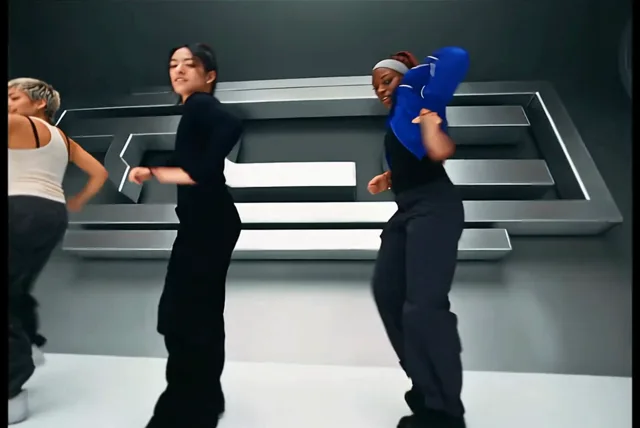
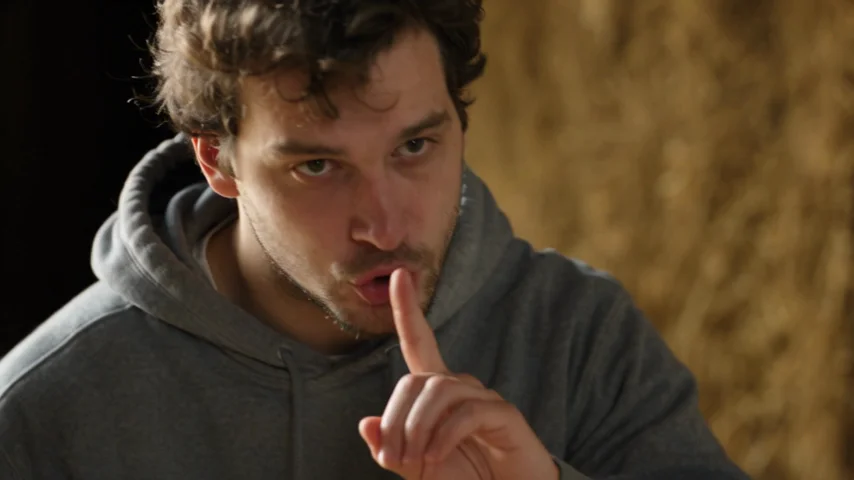
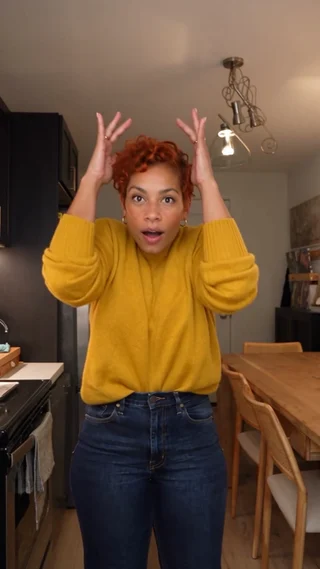
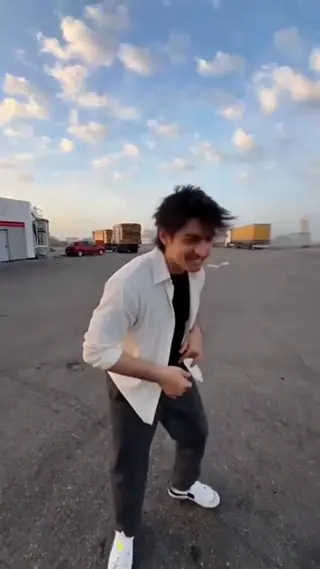
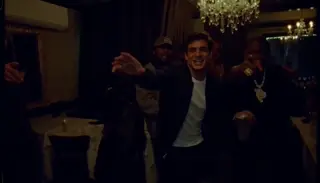
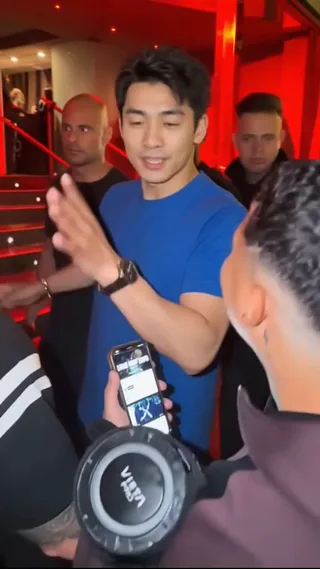
The prepared edit cuts between a blue-lit rap performance, an outdoor car-side shot and a gym dance surrounded by a crowd. Photo 1 follows the opening rapper; photo 2 follows the gym dancer and later cash close-up. Preserve the handheld swishes and quick cuts without blending the two identities.
Your photos and the prepared scene
Your photos define the cast, including faces, natural bodies, hair or fur and visible clothing. The included video guides only the prepared action, shot order and camera timing. No video upload is needed. Leave instructions blank for the default scene, or request a setting, lighting or outfit change while keeping the assigned roles. AI motion and fine details can vary.
Choose photos for the right roles
Upload 2 separate, sharp photos, one subject in each, following the role order. Show faces, bodies and limbs clearly; avoid group photos and heavy filters. Reverse the relevant photo order to swap roles. Photo roles: Opening rapper / Gym dancer.
Create my video
Add your photos
Upload 2 separate, sharp photos, one subject in each, following the role order. Show faces, bodies and limbs clearly; avoid group photos and heavy filters. Reverse the relevant photo order to swap roles. Photo roles: Opening rapper / Gym dancer.
Personalize the scene
Your photos define the cast, including faces, natural bodies, hair or fur and visible clothing. The included video guides only the prepared action, shot order and camera timing. No video upload is needed. Leave instructions blank for the default scene, or request a setting, lighting or outfit change while keeping the assigned roles. AI motion and fine details can vary.
Generate and download
Check the credit cost, generate, then inspect faces, hands and transitions before downloading. New generations and revisions use credits.
Questions about this effect
Which photos should I upload?
Upload 2 separate, sharp photos, one subject in each, following the role order. Show faces, bodies and limbs clearly; avoid group photos and heavy filters. Reverse the relevant photo order to swap roles. Photo roles: Opening rapper / Gym dancer.
Do I need to upload a reference video?
Your photos define the cast, including faces, natural bodies, hair or fur and visible clothing. The included video guides only the prepared action, shot order and camera timing. No video upload is needed. Leave instructions blank for the default scene, or request a setting, lighting or outfit change while keeping the assigned roles. AI motion and fine details can vary.
Does the video include sound?
With sound enabled, the matching audio is extracted from the prepared video and added after silent visual generation. A silent request leaves it out. Exact beat alignment can vary.
How long is the video?
One 15-second MP4 in 9:16. The included reference and matching audio use the same selected excerpt.
Can I change the outfit or background?
Yes. Add a short instruction about clothing, lighting or the setting. Keep the assigned photo roles for the selected scene.